

How to Schedule Google Business Profile Posts: Free & Paid Methods [2026]

Want to keep your Google Business Profile active without posting by hand every day? Since late 2025 you can schedule GBP posts natively, for free, and third-party tools still help if you run many locations or a team.
TL;DR: Google added a native post scheduler to Business Profiles in November 2025. On desktop at business.google.com, open Posts, click Add post, turn on Schedule this post, pick a date and time, and optionally set it to repeat weekly or monthly. It is free and now covers both single and multi-location profiles. Paid tools (Buffer from $6/mo per channel, Hootsuite $99/mo) are worth it only for bulk CSV uploads, approval workflows, cross-network posting, or unified reporting.
Jump to: Can you schedule? - Native scheduler - Third-party tools - Tool comparison - Post specs - How often to post - FAQ
Key stat: Consumers are 2.7x more likely to consider a business reputable when it has a complete Business Profile on Search and Maps, according to Google.
Why Schedule Google My Business Posts?
Create content, post everywhere
Create captions, images, and videos with AI. Schedule to 9 platforms in seconds.
Start your free trial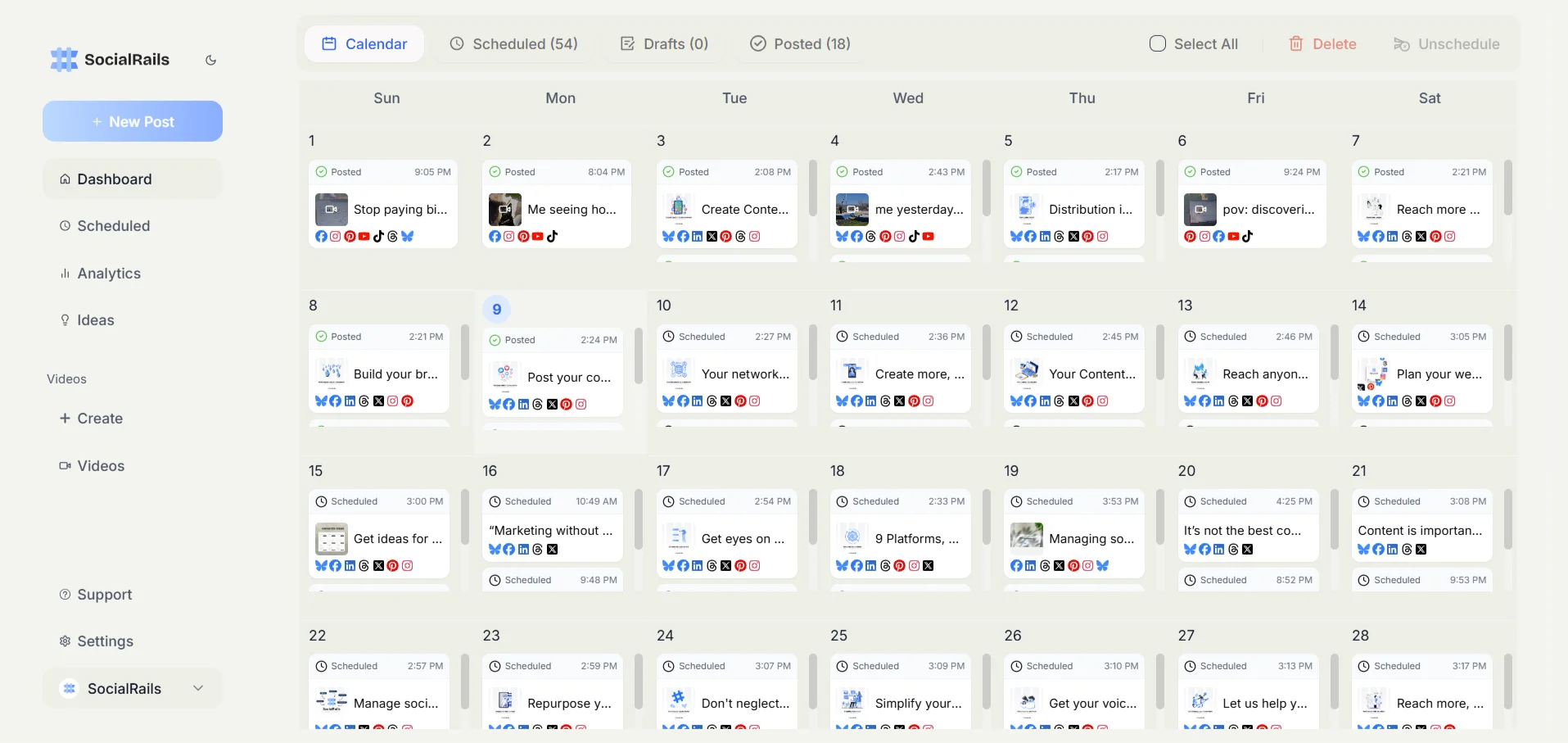
Simple answer: Regular GMB posts help your business show up higher in local Google searches and give customers fresh reasons to choose you.
Benefits:
- 📈 Better local SEO - Google loves active businesses
- 👀 More visibility - Posts appear in search results and Maps
- 💬 Direct customer reach - Showcase offers, events, updates
- ⏰ Save time - Set it and forget it (mostly!)
Can You Schedule Google Business Profile Posts?
Yes, and this changed recently. Google rolled out a native post scheduler that was reported by Search Engine Land on November 25, 2025, and it is now available to most profiles. Many guides still on the web (and the earlier version of this one) tell you it is impossible. It is not.
✅ Google's own scheduler - free, built into business.google.com, now with recurring posts and multi-location publishing, desktop for reliable scheduling ✅ Third-party tools - Planable, Buffer, Hootsuite, OneUp (from $6/mo) for bulk CSV uploads, approvals, cross-network posting, and unified analytics ✅ Local marketing platforms - LocalClarity, Birdeye (specialized for multi-location reputation and reporting)
Which one you need comes down to how you work:
GBP Scheduling Tools Comparison Table
Method 1: Google's Native Scheduler (Free)
This is the method that did not exist when most GBP scheduling guides were written. For a single location, or several locations you manage yourself, it is now the simplest option and it costs nothing.
- Go to business.google.com on desktop and select the profile
- Open Posts and click Add post, then pick the post type: Update, Offer, or Event
- Write the post, add the image, and choose a call-to-action button
- Turn on Schedule this post, then select the date and time you want it to go live
- To make it recurring, open the Repeats dropdown and choose weekly, monthly, or a custom schedule
- To publish the same post across several profiles at once, use multi-location publishing (create the post once, then apply it to the locations you manage)
- Save. Scheduled posts sit in your Posts list where you can edit or delete them before they publish
What it still does not do: reliable scheduling is desktop-focused (the mobile flow is inconsistent), there is no bulk CSV import, no approval workflow for teams, no cross-network posting to Instagram or Facebook in the same click, and no unified analytics across many profiles. Those gaps are exactly what a paid tool is for.
Best for: Single-location businesses and solo operators, which is most people reading this, plus small operators handling a handful of locations.
Method 2: Third-Party Tools (For Multiple Accounts and Teams)
Top Picks for 2026:
Best for beginners: Planable - $11/month
- Visual calendar interface
- Free tier available (limited posts)
- Easy approval workflows
- Supports all GBP post types
Best for simplicity: Buffer - $6/month per channel
- Clean, intuitive interface
- Supports What's New, Offer, and Event posts
- Preview exactly how posts will appear
- Mobile app for scheduling on the go
Best for multiple locations: OneUp - $15/month
- Schedule to multiple GBP profiles at once
- Bulk upload via CSV
- Supports all post types including Events
- Good for franchises and agencies
Best budget option: Publer - $12/month
- Free tier with limited posts
- Auto-scheduling feature
- Canva integration built-in
- Supports What's New and Offers
Best for content recycling: SocialBee - $29/month
- Evergreen content categories
- Automatic re-posting of successful content
- AI caption generator
- Good for consistent posting
For budget-friendly multi-platform scheduling, explore basic automation alternatives and campaign schedulers.
Step-by-Step: Scheduling with Planable
- Create account: Sign up at planable.io (free tier available)
- Connect GBP: Go to Settings → Social Media Accounts → Add Google Business Profile
- Authorize access: Log in with the Google account that manages your Business Profile
- Create post: Click "Compose" and select the Google Business Profile tab
- Add content: Write your text, add an image, select post type (What's New, Offer, or Event)
- Add CTA: Choose a call-to-action button (Learn More, Book, Call, etc.)
- Schedule: Click "Select Date and Time" and choose when to publish
- Confirm: Review the preview and save
Step-by-Step: Scheduling with Buffer
- Create account: Sign up at buffer.com ($6/month per channel)
- Connect GBP: Click "Manage Channels" → "Connect a New Channel" → Google Business Profile
- Authorize: Allow Buffer access to your Google Business Profile
- Create post: Click "Create" → Select your GBP profile
- Write content: Add text (up to 1,500 characters), upload image
- Choose post type: Select What's New, Offer, or Event
- Schedule: Use the calendar to pick your date and time
- Save: Click "Schedule Post"
Worth it if: You run a team or agency, need approval steps, want bulk CSV uploads, or schedule GBP alongside other social networks from one calendar.
GBP Post Specifications (2026)
Before creating your posts, know these requirements:
Pro tip: Posts don't disappear after 7 days, they move to the "Updates" section of your profile. They just lose prominent placement.
What Kind of Posts Work Best?
The 4 types Google Business Profile allows:
📢 What's New (most common)
- General updates, new services, team news
- Best for: Weekly updates, behind-the-scenes, tips
- Visibility: 7 days prominent, then archived
🎉 Events
- Workshops, sales events, grand openings
- Requires: Start date, end date, event title
- Best for: Anything with a specific date/time
💰 Offers
- Discounts, deals, limited-time promotions
- Requires: Offer title, start/end dates
- Optional: Coupon code, terms & conditions
- Best for: Driving immediate action
🛍️ Products
- Showcase specific items or services
- Requires: Product name, category, price (optional)
- Best for: Highlighting inventory, services with pricing
When and How Often to Post
Best times: 8-10 AM, 12-2 PM, 5-7 PM on weekdays (when people search for local businesses)
How often: 2-3 posts per week minimum, daily is better
Content mix: Mostly updates and products, sprinkle in offers and events
Images: Use good photos! At least 400x300 pixels, show your actual business/products
Quick Content Ideas
Easy post templates:
- "New this week: [service/product]. Call us at [number] to learn more!"
- "Behind the scenes: [what your team is doing]. We love serving [your city]!"
- "Special offer: [deal details]. Valid through [date]. Visit us at [address]!"
- "Happy [holiday]! We're open today [hours] to serve you."
Content calendar:
- Week 1: New stuff
- Week 2: Customer love (testimonials)
- Week 3: Behind-the-scenes
- Week 4: Special offers
What to Track
The metrics that matter:
- How many people saw your posts
- Clicks to your website
- Phone calls after posting
- Direction requests
Where to find them: Google My Business Insights (it's free and built-in!)
Free Tools to Support GMB Strategy
While you're building your Google My Business presence, use these free tools to enhance your overall local marketing:
- Best Time to Post Calculator - Find optimal posting times for your local audience
- Image Caption Generator - Create engaging captions for your GMB post images
- Social Media Color Palette Generator - Maintain consistent branding across GMB posts
- Hashtag Generator - Find relevant local hashtags for your posts
- How to Schedule Instagram Stories - Learn scheduling strategies for visual content
- Social Media Management Cost Guide - Compare DIY vs professional local marketing management
Frequently Asked Questions About Google My Business Scheduling
Can you schedule Google My Business posts directly on Google?
Yes. Google added native post scheduling to Business Profiles in November 2025. On desktop at business.google.com, open Posts, click Add post, turn on "Schedule this post," and set a date and time. You can also make posts recurring with the "Repeats" dropdown and publish to multiple locations at once. Third-party tools like Buffer or Hootsuite are only needed for bulk uploads, approvals, or cross-network posting.
How often should I post on Google My Business?
Post 2-3 times per week minimum for best results. Daily posting is even better if you have quality content. Consistent posting signals to Google that your business is active, which can improve your local search rankings.
What are the best times to post on Google My Business?
Post when people typically search for local businesses: 8-10 AM, 12-2 PM, and 5-7 PM on weekdays. However, timing matters less than consistency for GMB posts since they stay visible longer than social media posts.
Do Google My Business posts help with local SEO?
Yes, regular GMB posts can improve your local search rankings. Google views active posting as a signal that your business is current and engaged with customers, which can boost your visibility in local search results.
What types of content work best for GMB posts?
Focus on business updates, behind-the-scenes content, special offers, and local community involvement. Product showcases and event announcements also perform well. Keep content authentic and locally relevant.
Can I use the same content across multiple GMB locations?
While possible, it's better to customize content for each location. Include location-specific details, local events, or area-relevant offers to make posts more authentic and engaging for local customers.
How long do Google My Business posts stay visible?
Most GMB posts remain visible for 7 days, though Events and Offers have specific end dates. After this time, posts are archived but still contribute to your overall business profile activity.
What image size works best for Google My Business posts?
Use images that are at least 400x300 pixels, with 1200x900 pixels being optimal. Photos should be high-quality, well-lit, and showcase your actual business, products, or services for best engagement.
Is it worth paying for GMB scheduling tools?
For a single location, use Google's own scheduler at business.google.com. It is free, it is built in, and since it shipped in late 2025 there is no longer a reason to post manually or set phone reminders. Paid tools like Buffer ($6/month per channel) earn their place once you are handling multiple locations, approvals, or reporting across profiles.
Can GMB posts include links to my website?
Yes, you can include links in your GMB posts. Use clear call-to-action buttons like "Learn More," "Book Now," or "Call Now" to drive traffic to your website or encourage specific customer actions.
The Bottom Line
Google My Business posting helps your local SEO, and as of November 2025 Google finally lets you schedule posts natively, for free. That is the big change: you no longer need a paid tool or phone reminders just to plan posts ahead.
For most small businesses: Use Google's native scheduler at business.google.com. Set posts to repeat weekly or monthly and post 2-3 times per week about updates, behind-the-scenes moments, and special offers.
For multiple accounts or busy teams: Invest in a scheduling tool when you need bulk CSV uploads, approval workflows, cross-network posting, or unified reporting. Buffer at $6/month per channel is the easiest to start with.
Remember: Consistency beats perfection. Regular, authentic posts about your local business will help more customers find you on Google. Keep it simple, keep it local, and keep it real!
Was this article helpful?
Let us know what you think!