

How to Post Instagram Stories from PC in 2026: Complete Guide

Quick Answer
instagram.com has no Story upload button. The desktop site handles feed photos, videos, carousels, Reels and Live, but the Create menu never offers "Story". To post a Story from a PC you need one of three routes:
One thing to clear up first: Instagram's own in-app scheduler, which opened to any public account on 1 March 2026 (no Professional account needed, up to 75 days ahead, 25 scheduled items per day), covers feed posts, carousels and Reels only. Stories are excluded. So "just schedule it in the app" is not an answer for Stories, and it is not available on desktop at all.
Jump to: Browser device emulation | Meta Business Suite | Third-party tools | Comparison | Story specs and file limits | Troubleshooting | FAQ
Create content, post everywhere
Create captions, images, and videos with AI. Schedule to 9 platforms in seconds.
Start your free trial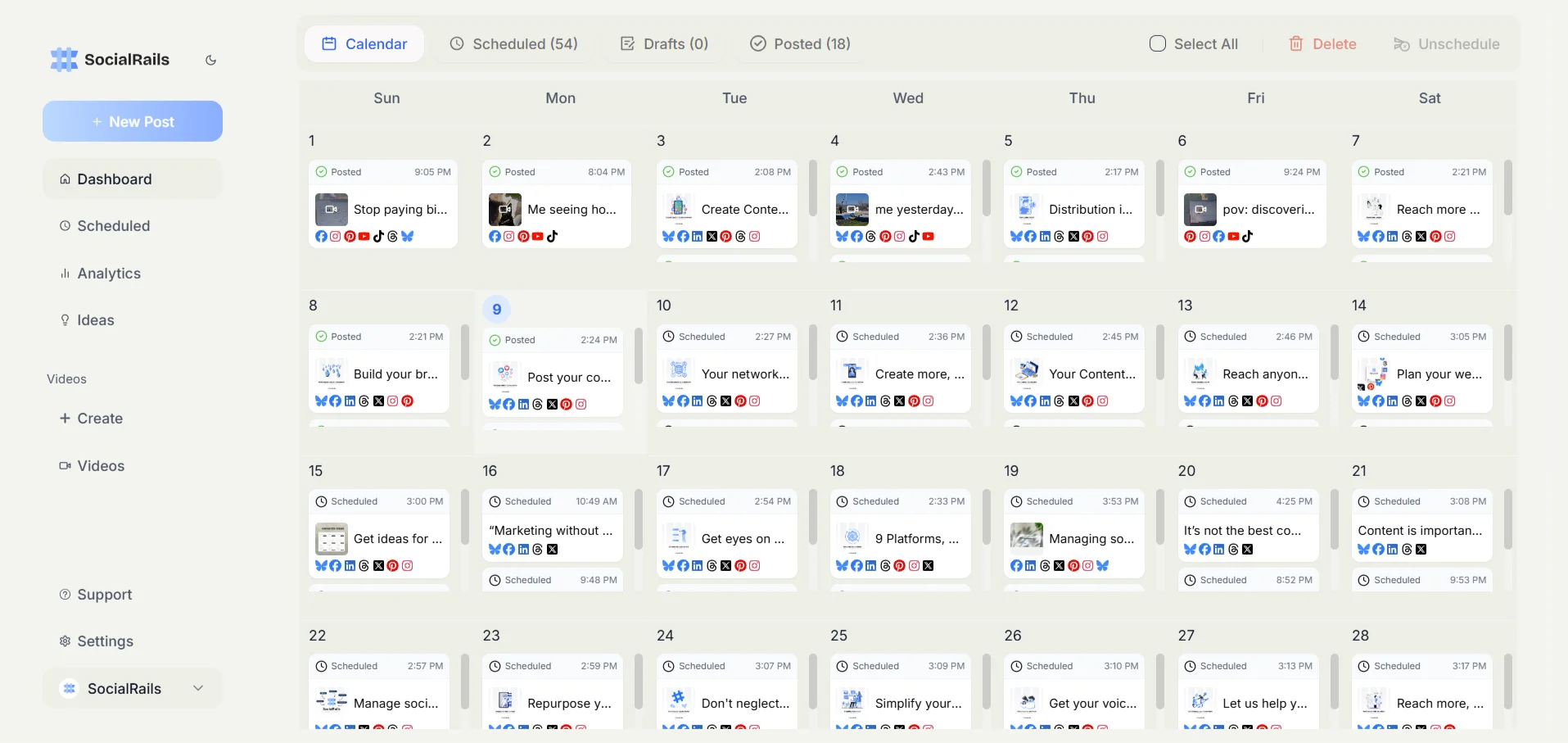
Method 1: Browser Device Emulation (Free, Any Account)
Your browser's built-in device emulation makes instagram.com serve its mobile layout, which does have a Story upload path. It works for personal, Creator and Business accounts, and it needs no extension or download. It posts immediately: there is no schedule option here.
Chrome and Edge (Windows, Mac)
-
Open Instagram
- Go to instagram.com and log in.
-
Open DevTools and turn on device emulation
- Press F12, or Ctrl+Shift+I on Windows, or Cmd+Option+I on Mac.
- Then press Ctrl+Shift+M (Windows) or Cmd+Shift+M (Mac) to toggle the device toolbar. You can also click the small phone/tablet icon at the top-left of the DevTools panel.
-
Pick a phone and reload
- Choose any iPhone or Pixel preset from the "Dimensions" dropdown, or set a custom 390 x 844.
- Reload the page. Instagram only decides which layout to serve on load, so skipping the reload is the single most common reason this fails.
-
Post your Story
- Tap the + icon in the bottom bar, or your profile picture with the plus badge.
- Choose Story, pick the file from your computer, and confirm.
- Add text if you want, then click Share or Your story.
Firefox
- Press F12, then click the responsive design icon (phone/tablet) or press Ctrl+Shift+M.
- Set the viewport to a phone size such as 390 x 844.
- Reload instagram.com, then use the + button and choose Story.
Safari (Mac)
- Enable the developer menu: Safari > Settings > Advanced, then tick "Show features for web developers". On older versions this menu is called Preferences and the checkbox is "Show Develop menu in menu bar".
- Choose Develop > Enter Responsive Design Mode (Control+Cmd+R) and pick an iPhone.
- Reload instagram.com and use the + button.
If the layout does not switch, also set Develop > User Agent > Safari, iOS and reload again.
What you lose with this method
- No music sticker, and no audio picker.
- Polls, questions, quizzes and countdown stickers are usually missing or unreliable.
- Filters and drawing tools are cut down compared with the phone app.
- No scheduling: whatever you upload goes live right away.
- Instagram changes its web layout often, so the button positions above can shift. The reload step stays the same.
Because the sticker set is thin here, a common workflow is to build the frame in a design tool at full size, upload it as a flat image, then add only the interactive stickers you truly need from your phone.
Method 2: Meta Business Suite (Business and Creator Accounts)
This is Meta's own free desktop tool, and it is the only free way to schedule an Instagram Story. Note that Meta Creator Studio, which older guides still point at for this, was retired in 2024. Its publishing features moved into Meta Business Suite, so business.facebook.com is where you should be.
Requirements
- An Instagram Business or Creator account. Personal accounts cannot schedule Stories here.
- A Facebook Page connected to that Instagram account.
Step-by-step
-
Open Business Suite
- Go to business.facebook.com and pick the right Page in the account switcher at the top left.
-
Start a Story
- Click Create and choose Create story (in some layouts it sits under the "+" button).
- Tick Instagram as a destination. You can post the same frame to a Facebook Story at the same time.
-
Upload and arrange
- Upload vertical 9:16 files. You can queue several frames in one session, so a multi-frame Story goes up in one pass.
- Add basic text overlays and a link sticker.
-
Publish or schedule
- Use Share now, or open the dropdown and choose Schedule to set a date and time.
- Meta's scheduling limits are 25 scheduled items per day and up to 75 days ahead, with a short minimum lead time of roughly 20 minutes. If the date picker refuses a far-out date, Meta is applying a narrower window to your account, so pick the furthest date it accepts.
What Business Suite gives you
- Free Story scheduling, which the Instagram app itself still does not offer.
- A link sticker. Worth saying plainly: the old "swipe up" link was retired in 2021 and replaced by the link sticker, which every account can use with no 10,000 follower or verification requirement.
- Story insights and multi-account management in one place.
What it strips out
- Music, polls, questions, quizzes and countdown stickers are not available on scheduled Stories, and can drop off auto-published ones.
- Location tags and mentions are limited.
- If you need those, schedule a reminder instead and post the frame from your phone at that moment.
For a deeper walkthrough of the timing side, see our guide to scheduling Instagram Stories.
Method 3: Third-Party Scheduling Tools
Schedulers publish Stories through Instagram's official Content Publishing API, so they all need a Business or Creator account connected through Facebook. Entry prices below were checked in July 2026.
Two things to check before you pay for any of them:
- Auto-publish vs reminder. Auto-publish posts the Story with no action from you but drops interactive stickers. Reminder publishing pings your phone so you finish the post in the app, which keeps music and polls. Some tools only do one of the two for Stories.
- Link stickers. API-published Stories support a link sticker on most tools, but not all pass it through.
Not sure which one fits? Compare the field in our best social media scheduler roundup, or read the broader social media scheduling guide.
Method Comparison: Which Should You Use?
Recommendation:
- Personal account, one-off Story? Browser device emulation.
- Business account, occasional posting? Meta Business Suite.
- Business account, regular posting across several accounts? A scheduler such as SocialRails.
- Story that needs music, a poll or a quiz? Post it from the phone, or use reminder scheduling. No desktop route preserves those.
Story Specs and File Limits
Get these right and most upload failures disappear.
Instagram's published caps for feed uploads are 30MB for images and 4GB for videos. Story uploads through third-party APIs are usually tighter than that, so if a file above about 8MB (image) or 100MB (video) is rejected by a scheduler, compress before you blame the browser. If your uploads keep coming out soft, see why Instagram Stories look blurry and our Instagram Story length guide.
Best Practices for PC Story Posting
Design Tips
- Use vertical format (9:16 ratio)
- Keep text readable on mobile
- Place important elements in safe zone
- Use contrasting colors for text
- Test on mobile before posting
Content Strategy
- Post consistently (1-3 Stories daily)
- Mix content types (behind scenes, tutorials, polls)
- Use interactive elements (polls, questions)
- Create Story Highlights for important content
- Share user-generated content
Troubleshooting Common Issues
No "+" button after switching to mobile view
This is the number one problem, and it is almost always the same cause: you did not reload the page after turning on device emulation. Instagram picks its layout when the page loads. Toggle emulation on, then press F5. If it still shows the desktop grid, widen or narrow the emulated viewport slightly and reload once more, or clear cookies for instagram.com and log in fresh inside device mode.
Upload Failures
- Check file size (images under 30MB, videos under 4GB on Instagram's own uploader; schedulers are stricter)
- Verify format (JPG, PNG, MP4, MOV supported; HEIC from an iPhone is not, convert it first)
- Clear browser cache and try again
- Try a different browser if issues persist
Feature Missing
- Music, polls and quizzes are not a bug. They are simply not exposed to the web or to scheduled Stories. Post from the phone if you need them.
- Update browser to latest version
- Disable ad blockers that might interfere
- Reconnect the account in your scheduler if Story publishing greys out. Instagram tokens expire and the tool silently falls back to feed-only.
Quality Issues
- Upload high resolution (1080x1920 minimum)
- Use proper aspect ratio (9:16 for Stories)
- Avoid heavy compression before uploading
- Test different file formats for best quality
Story Content Ideas for Business
Engagement Boosters
- Behind the scenes content
- Polls and questions for feedback
- Quick tips and tutorials
- Product demonstrations
- Team introductions
- Customer testimonials
- Day-in-the-life content
- Industry news commentary
Call-to-Action Stories
- Link sticker for any outbound link. This replaced "swipe up" in 2021 and has no follower threshold. See how to add links on Instagram.
- "Link in bio" direction
- "DM us" for inquiries
- "Save this post" reminders
- "Share with friends" requests
Scheduling Stories for Maximum Impact
Best Posting Times
- Morning: 6 AM to 9 AM (commute time)
- Lunch: 11 AM to 1 PM (break time)
- Evening: 7 PM to 9 PM (leisure time)
- Weekends: 10 AM to 12 PM
Content Calendar Planning
- Monday: Week ahead preview
- Tuesday: Tips and tutorials
- Wednesday: Behind the scenes
- Thursday: User-generated content
- Friday: Fun and entertainment
- Weekend: Lifestyle and inspiration
Advanced Story Features
Interactive Elements
- Polls: Get audience feedback
- Questions: Encourage engagement
- Quiz: Test knowledge
- Slider: Rate experiences
- Music: Add trending songs (mobile only)
Business Features
- Link stickers (all accounts, no follower minimum)
- Product tags for shopping
- Location tags for local business
- Branded hashtags for campaigns
- Contact buttons for inquiries
Analytics and Performance
Key Metrics to Track
- Reach: How many people saw your Story
- Impressions: Total Story views
- Exits: When people leave your Story
- Replies: Direct messages from Stories
- Taps forward/back: Story engagement
Using Instagram Insights
- Go to your profile
- Click "Professional dashboard"
- View "Stories" analytics
- Track performance over time
- Adjust strategy based on data
Common Mistakes to Avoid
Technical Mistakes
- Using wrong aspect ratio
- Poor image quality
- Files too large to upload
- Posting at wrong times
- Ignoring mobile preview
Content Mistakes
- Too much text on screen
- Inconsistent posting schedule
- No call to action
- Ignoring Story analytics
- Not using interactive features
Related Tools and Resources
Need help creating better Instagram content? Check out our:
- Instagram Stories best practices
- How to post to Instagram from a Mac
- Free Instagram Tools
- Instagram Character Counter
- Social Media Scheduling Guide
Start Posting Stories from PC Today
Ready to manage your Instagram Stories more efficiently? Start your free 3-day SocialRails trial and schedule Stories from your computer with advanced features like optimal timing, team collaboration, and detailed analytics.
Frequently Asked Questions
Can I post Instagram Stories directly from my computer?
Yes, but not through the normal instagram.com desktop view, which has no Story upload button. Use your browser's device emulation to load Instagram's mobile layout, use Meta Business Suite if you have a Business or Creator account, or use a third-party scheduler such as SocialRails.
What's the best method to upload Stories from PC?
For a one-off Story on a personal account, browser device emulation is fastest and free. For a Business or Creator account, Meta Business Suite is free and can also schedule. For regular posting across several accounts, a scheduler such as SocialRails is the least manual option.
Do I need to install any software to post Stories from PC?
No special software is required. You can use any web browser with Instagram's web interface or third-party web-based tools. Some professional tools offer desktop apps for enhanced functionality.
What image size should I use for Stories when posting from PC?
Use 1080x1920 pixels (9:16 aspect ratio) for optimal quality. Images should be under 30MB and videos under 4GB for successful upload from your computer.
Can I schedule Instagram Stories from my computer?
Yes, but not on instagram.com itself and not with Instagram's in-app scheduler, which covers feed posts, carousels and Reels only. Meta Business Suite schedules Stories free for Business and Creator accounts, and third-party tools such as SocialRails, Buffer and Hootsuite do the same.
Does Instagram's in-app scheduling work for Stories?
No. Since 1 March 2026 any public Instagram account can schedule content in the app, up to 75 days ahead and 25 items per day, with no Professional account required, but that feature covers feed posts, carousels and Reels. Stories are excluded, and the in-app scheduler is not available on desktop.
Are there limitations when posting Stories from PC vs mobile?
Yes. From a PC you lose the music sticker, polls, questions, quizzes and countdowns, and most filters and drawing tools. You gain a larger editing screen, access to proper design software, and easier file management for batch content.
Can I add interactive elements like polls to Stories posted from PC?
Not reliably. Polls, questions and quizzes are not exposed in Instagram's web layout and are stripped from auto-published scheduled Stories. The workaround is reminder scheduling, where the tool notifies you and you finish the post in the app, or adding the sticker from your phone after the frame goes live.
Will my Stories look the same whether posted from PC or mobile?
Yes, Stories posted from PC appear identical to mobile-posted Stories in the Instagram app. The key is using the correct dimensions (1080x1920) and maintaining good image quality.
Can I edit my Stories after posting them from PC?
No, Instagram doesn't allow editing of Stories after posting, regardless of whether you posted from PC or mobile. You can only delete and repost with changes.
Is posting Stories from PC good for business accounts?
Yes, posting from PC is excellent for businesses. You can create professional content using design software, maintain consistent branding, schedule posts strategically, and manage multiple accounts efficiently.
Can I still use Meta Creator Studio to post Stories?
No. Meta retired Creator Studio in 2024 and moved its publishing and scheduling features into Meta Business Suite at business.facebook.com. Any guide that still sends you to Creator Studio for Instagram Stories is out of date.
Conclusion
Posting Instagram Stories from PC is not only possible but can be more efficient for content creators and businesses. Whether you use Instagram's web interface, browser tricks, or professional tools like SocialRails, you can maintain your Story presence without being tied to your phone.
The key is choosing the right method for your needs and following best practices for content creation and posting times.
Was this article helpful?
Let us know what you think!