
What Is Facebook Comment Management?
Facebook comment management is the process of monitoring, moderating, and responding to comments on your Facebook page posts, ads, and group discussions. It includes hiding or deleting inappropriate comments, filtering spam automatically, responding to customer questions, and maintaining a comment section that reflects well on your brand.
Good comment management matters because:
- Unmoderated comments hurt your brand. Spam, negativity, and unanswered questions make your page look neglected.
- Facebook's algorithm rewards engagement. Posts with active, positive comment sections get distributed more broadly.
- Customer trust depends on responsiveness. When people ask questions in comments and get a thoughtful reply, it builds confidence in your business.
- Crisis prevention starts in comments. Catching and addressing complaints early keeps small issues from becoming public problems.
How to Hide Comments on Facebook
Hiding a comment makes it invisible to everyone except the person who wrote it (and their friends). The commenter doesn't get notified, so it's a low-conflict way to clean up your comment section.
Hiding Individual Comments
On desktop:
- Hover over the comment you want to hide
- Click the three dots (⋯) that appear on the right
- Select "Hide comment"
On mobile:
- Tap and hold the comment
- Select "Hide comment" from the menu
The comment becomes invisible to everyone except the commenter and their friends. You can unhide it later if needed.
Hiding All Comments from a Specific User
- Find a comment from the user
- Click the three dots (⋯) next to the comment
- Select "Hide all comments from [username]"
All existing and future comments from that user will be automatically hidden. This is useful for repeat offenders without the confrontation of blocking.
When to Hide vs. Delete vs. Leave a Comment
How to Turn Off Comments on Facebook Posts
Before Publishing a Post
- Create your post in the status update box
- Click the audience selector dropdown
- Select "More Options"
- Choose "Turn off commenting"
- Publish the post — comments will be disabled
After Publishing a Post
- Go to your published post
- Click the three dots (⋯) in the top right corner
- Select "Turn off commenting"
The post remains visible but no new comments can be added. Existing comments stay visible.
Adjusting Comment Settings for Your Entire Page
- Go to your Facebook business page
- Click Settings in the left sidebar
- Select General
- Find "Visitor Posts"
- Choose who can post and comment on your page
- Save changes
Create content, post everywhere
Create captions, images, and videos with AI. Schedule to 9 platforms in seconds.
Start your free trial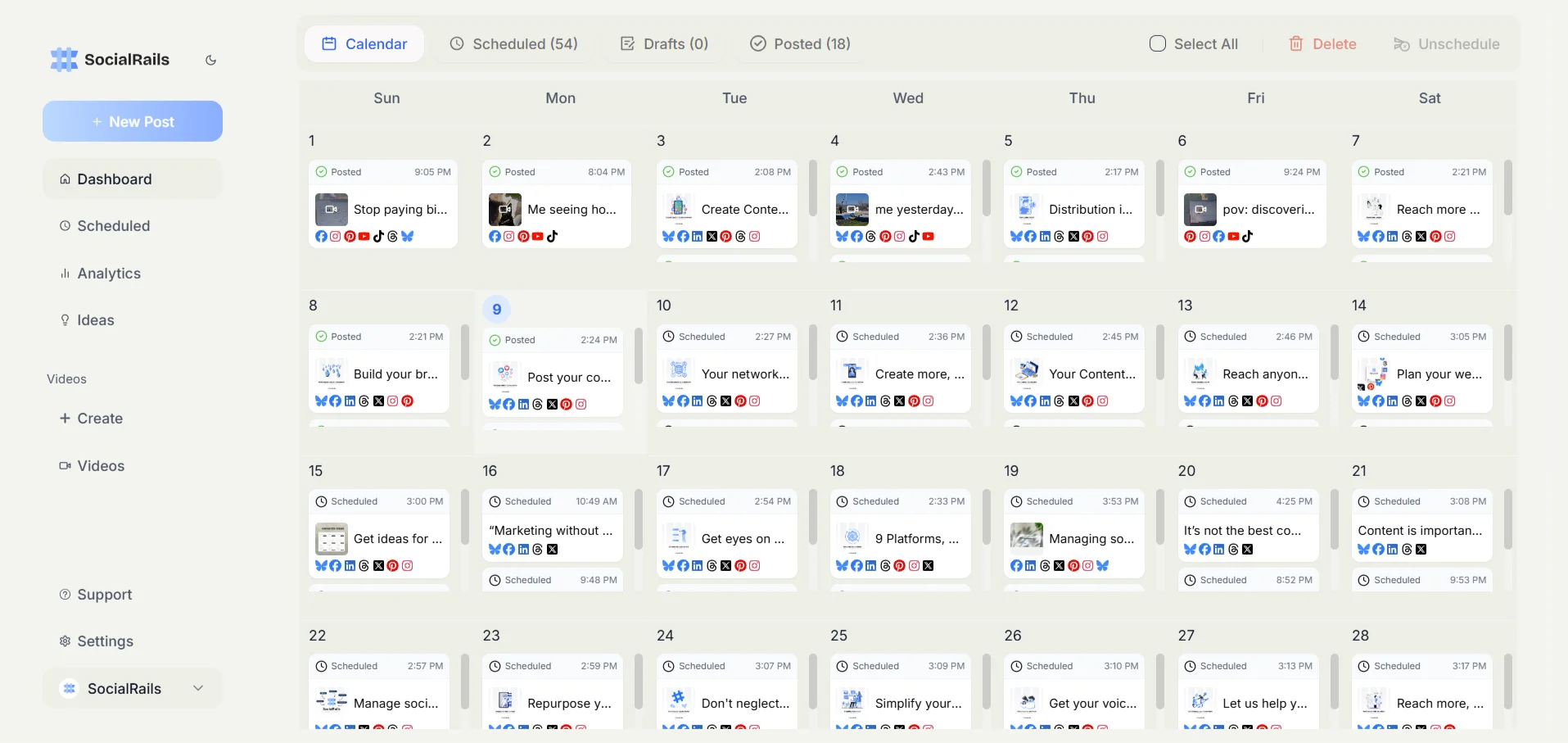
Setting Up Automatic Comment Filtering
Automatic filtering catches spam and inappropriate comments before they appear publicly. This is especially important for pages with high comment volume.
Keyword Filtering
- Go to Page Settings → General
- Find "Page Moderation"
- Add keywords you want to filter — comments containing these words will be automatically hidden
Keywords worth filtering:
- Profanity and slurs
- Common spam phrases ("DM me for...", "check my bio", "link in bio")
- Competitor names (optional — depends on your strategy)
- Scam-related terms ("free money", "crypto giveaway", "click this link")
Separate keywords with commas. The filter catches exact matches, so add common misspellings of words you want to block.
Facebook's Profanity Filter
- Go to Page Settings → General
- Find "Profanity Filter"
- Choose a level:
- None: No automatic filtering
- Medium: Catches most inappropriate language (recommended starting point)
- Strong: More aggressive filtering — may catch legitimate words, so monitor regularly
Comment Ranking
Facebook can automatically sort comments so the most relevant ones appear first. Enable this in your page settings to push low-quality comments further down.
- Go to Page Settings → General
- Find "Comment Ranking"
- Turn it on — Facebook will prioritize comments with the most engagement and relevance
How to Respond to Comments Privately
Some customer issues shouldn't be handled in public comments — account details, personal information, complaints that need investigation, or sensitive topics. Facebook lets you take these conversations to private messages without losing context.
Responding via Private Message from a Comment
- Find the comment you want to respond to privately
- Click "Message" below the comment (visible to page admins/moderators)
- Type your private response
- Send — the commenter receives your message in their Messenger inbox
- The public comment will show a note: "[Page Name] responded privately to this"
Best Practices for Moving to Private
- Always acknowledge the comment publicly first before going private. A brief "Thanks for reaching out — we're sending you a private message to help with this" lets other viewers see you're responsive.
- Move to private when: the issue involves personal details (order numbers, account info), requires back-and-forth troubleshooting, or could escalate if discussed publicly.
- Stay public when: the answer helps other people with the same question, the feedback is positive, or the response is quick and straightforward.
- Never ignore comments and only message privately — it looks like you're hiding something from public view.
Handling Common Scenarios
Customer complaint in comments:
Public reply: "Hi [Name], sorry to hear about this. We'd like to look into it — sending you a private message now." Private message: [Address the specific issue with details]
Question involving account details:
Public reply: "Good question! We'll need your order number to check — sending you a message so you can share it securely." Private message: [Resolve with the details they provide]
Sensitive feedback:
Public reply: "Thank you for letting us know. We're reaching out privately to learn more." Private message: [Investigate and respond]
Pinned Comments: Best Practices
Pinning a comment keeps it at the top of the comment section, making it the first thing people see. This is useful for highlighting important information, FAQ answers, or positive reviews.
How to Pin a Comment
- Find the comment you want to pin
- Click the three dots (⋯) next to the comment
- Select "Pin comment"
The comment moves to the top with a "Pinned" label.
When to Use Pinned Comments
- Pin your own clarifying comment on posts that frequently generate the same question
- Pin a correction if the original post contains a mistake
- Pin a positive customer testimonial on product-related posts
- Pin important context (dates, links, eligibility details) on event or promotion posts
- Pin contest rules on giveaway posts
Pinning Tips
- You can pin one comment per post on most pages
- Pin your own comment rather than someone else's when possible (you control the content)
- Update pinned comments if the information becomes outdated
- On ads, pinning a positive comment can improve perception for new viewers
Managing Comments on Facebook Ads
Comments on ads require different management than organic posts because ad comments are visible to everyone who sees the ad — potentially thousands or millions of people who aren't following your page.
Why Ad Comments Need Special Attention
- Negative comments on ads directly impact ad performance and conversion rates
- Competitors sometimes comment on ads to redirect traffic
- Spam and scam comments on ads can harm your brand's credibility
- Unanswered questions on ads represent lost potential customers
How to Moderate Ad Comments
Through Ads Manager:
- Go to Ads Manager
- Find the ad you want to moderate
- Click the ad preview or "View" to see the post
- Moderate comments the same way you would on any post (hide, delete, respond)
Through Page Inbox:
- Go to your Facebook page
- Click Inbox (or Meta Business Suite → Inbox)
- Filter by "Ad comments"
- Respond to or moderate comments from there
Ad Comment Best Practices
- Check ad comments daily — especially in the first 48 hours after launching a new ad
- Respond to questions quickly — unanswered questions on ads mean lost leads
- Hide competitor spam immediately — don't engage, just hide
- Pin positive comments on high-spend ads to improve social proof
- Set up keyword filters before launching ads to catch spam automatically
- Never argue in ad comments — it's visible to your target audience and damages conversion
Facebook Comment Management Tools and Software
Facebook's Built-In Tools
Facebook provides several native tools for comment management:
- Page Moderation — automatic keyword filtering for comments
- Profanity Filter — blocks inappropriate language at adjustable levels
- Comment Ranking — sorts comments by relevance and quality
- Notification Settings — real-time alerts for new comments
- Inbox / Meta Business Suite — centralized inbox for managing comments and messages across Facebook and Instagram
- Page Roles — assign admin, editor, or moderator access to team members
For most small businesses and pages with moderate comment volume, Facebook's built-in tools are sufficient.
Third-Party Comment Management Software
For businesses managing high comment volumes, multiple pages, or running many ads simultaneously, third-party tools add automation, team workflows, and cross-platform management.
What to Look for in Comment Management Software
- Unified inbox — manage Facebook, Instagram, and other platform comments in one place
- Auto-moderation rules — automatically hide or flag comments based on keywords, sentiment, or patterns
- Team workflows — assign comments to team members, add internal notes, track response times
- Ad comment support — some tools only handle organic post comments, not ad comments
- Saved replies — templates for common questions and responses
- Analytics — response time tracking, comment volume trends, sentiment reports
Team Comment Management
When multiple people manage comments, clear roles and workflows prevent duplicate responses, missed comments, and inconsistent messaging.
Assigning Roles
Creating Response Templates
Pre-written templates save time and maintain consistency. Create templates for:
- Thank you responses for positive feedback and reviews
- Support redirection — moving conversations to private message, email, or phone
- FAQ answers for your most common questions
- Complaint acknowledgment — empathetic initial response while you investigate
- Crisis responses — pre-approved language for sensitive situations
Important: Templates should be starting points, not copy-paste responses. Personalize each reply with the commenter's name and specific situation. People can tell when they get a generic response.
Response Time Guidelines
- Within 1 hour for complaints and urgent issues (especially on ads)
- Within 4 hours for customer questions
- Within 24 hours for general comments
- Immediately for comments containing personal information (hide first, then respond)
Crisis Comment Management
When negative comments escalate — a product issue goes viral, a controversial post draws backlash, or a customer complaint attracts pile-on attention:
Step-by-Step Crisis Response
- Don't panic-delete everything. Mass-deleting comments during a crisis backfires — people screenshot, and "they're deleting comments!" becomes the story.
- Respond quickly and professionally to the original complaint with a factual, empathetic response.
- Acknowledge the issue if there's validity. "We're aware of this issue and working on a fix" is better than silence or denial.
- Move detailed conversations to private messages for resolution, but keep the public acknowledgment visible.
- Pin a clarifying comment at the top if the same question keeps coming up.
- Hide (don't delete) truly off-topic or inflammatory comments — they add no value and distract from resolution.
- Consider temporarily turning off comments only as a last resort if the situation is completely unmanageable.
Frequently Asked Questions
What is Facebook comment management?
Facebook comment management is the process of monitoring, moderating, and responding to comments on your Facebook page posts, ads, and groups. It includes hiding spam, filtering inappropriate language, responding to customer questions, and maintaining a positive comment section that reflects well on your brand.
How do I hide comments on Facebook?
On desktop, hover over the comment and click the three dots (⋯), then select "Hide comment." On mobile, tap and hold the comment and select "Hide comment." Hidden comments remain visible to the commenter and their friends but are invisible to everyone else. The commenter is not notified.
What's the difference between hiding and deleting a Facebook comment?
Hiding makes a comment invisible to most people while keeping it visible to the commenter and their friends — the commenter isn't notified. Deleting permanently removes the comment for everyone. Hidden comments can be unhidden later; deleted comments cannot be recovered. When in doubt, hide first.
How do I turn off comments on a Facebook post?
For a published post, click the three dots (⋯) in the top right corner and select "Turn off commenting." For a new post, use the audience selector dropdown, choose "More Options," and select "Turn off commenting" before publishing.
Can I recover deleted Facebook comments?
No. Once a comment is deleted, it's permanently removed and cannot be recovered. This is why hiding is generally recommended over deleting — you can always unhide a comment, but you can't undo a deletion.
How do I manage comments on Facebook ads?
Go to Ads Manager, find your ad, and click the preview to access the post. You can also manage ad comments through Meta Business Suite → Inbox, filtered by ad comments. Ad comments should be checked daily, especially during the first 48 hours of a campaign, because unanswered questions and negative comments directly impact ad performance.
What are the best Facebook comment moderation tools?
Facebook's built-in tools (keyword filtering, profanity filter, comment ranking) work for most small businesses. For higher volume, third-party tools like CommentGuard (dedicated moderation), Agorapulse (unified inbox), NapoleonCat (auto-moderation), and Sprout Social (team workflows) add automation and team management features.
How do I respond to comments privately on Facebook?
Click "Message" below any comment on your page (visible to admins/moderators only). This sends a private message to the commenter via Messenger. The public comment will show "[Page Name] responded privately to this." Always post a brief public acknowledgment before going private so other viewers can see you're responsive.
How do I pin a comment on Facebook?
Click the three dots (⋯) next to the comment you want to pin and select "Pin comment." The comment moves to the top of the comment section with a "Pinned" label. Use this for clarifications, FAQs, positive testimonials, or important context.
How do I set up automatic comment filtering on Facebook?
Go to Page Settings → General → Page Moderation. Add keywords separated by commas — any comment containing those words will be automatically hidden. Also enable the Profanity Filter (Settings → General → Profanity Filter) at Medium level for additional automatic filtering.
Related guides: Crisis Management | Community Management | Customer Engagement